
Building my Own Static Website Builder
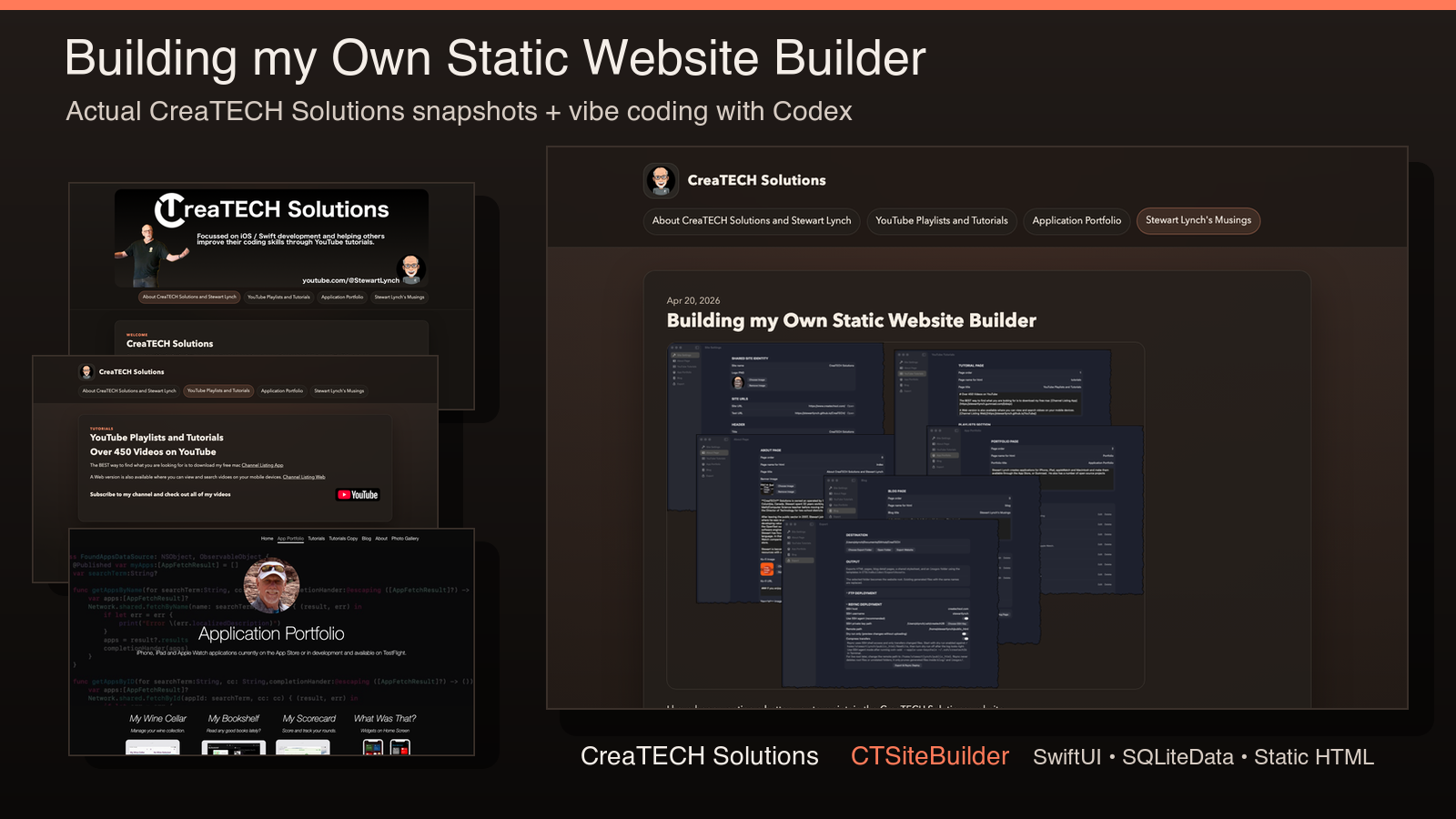
I have been wanting a better way to maintain the CreaTECH Solutions website.
The site itself is not especially unusual. It has an About page, a YouTube tutorials page, an app portfolio, and a blog. But keeping those pages up to date can become surprisingly repetitive. Each new video needs a thumbnail, a title, a release date, and a link. Each app needs artwork, a description, a source, a download URL, and sometimes a separate app page. Blog entries need images and markdown content. Even simple site-wide details like the logo, header, footer, and social links need to stay consistent across every page.
So instead of continuing to hand-edit web pages, I decided to build a macOS app that could become the content management system for my own site.
The result is CTSiteBuilder, a SwiftUI app that lets me manage the website content in one place and export the whole thing as a static website.
This site you are viewing this blog on was generated with this application.
Starting With the Content
The first step was not the UI. It was understanding the shape of the website.
I listed the pages I needed:
- About
- YouTube Tutorials
- App Portfolio
- Blog
Then I broke those pages down into the actual pieces of data they needed. The About page needed a title, an about paragraph, a banner image, social links, a Ko-fi callout, and a newsletter callout. The Tutorials page needed playlist information, current video information, thumbnails, YouTube links, release dates, and a way to mark whether a video had been released. The Portfolio page needed app records grouped by source, such as App Store, Gumroad, and GitHub. The Blog page needed entries with dates, images, titles, and markdown content.
That became the foundation of the app. Rather than thinking of the site as a collection of HTML files, I treated it as structured data.
Using SQLiteData as the Backbone
For persistence I used SQLiteData. Each major part of the site has its own table-backed model: site configuration, about page, social links, tutorials page, playlists, videos, portfolio page, portfolio apps, blog page, and blog entries.
This gave the project a clean separation:
- SwiftUI is responsible for editing the content.
- SQLiteData is responsible for storing it.
- The exporter is responsible for turning it into web pages.
That separation mattered. Once the data model was in place, it became much easier to add features without rethinking the entire app. For example, adding newsletter fields to the About page or adding a released flag to videos was handled as a database migration, not a rewrite.
The app also supports CloudKit synchronization through SQLiteData, so the content can be synced through iCloud. I added a manual "Force iCloud Resynchronization" action for the point where the CloudKit schema has been deployed and I want to make sure local website records are pushed again.
Building the Editor
The main app UI uses a SwiftUI NavigationSplitView with sections for Site Settings, About Page, YouTube Tutorials, App Portfolio, Blog, and Export.
Each section is an editor for a specific part of the website. Site Settings handles shared identity: the site name, logo, live URL, test URL, header title, header subtitle, and footer copyright. The page editors handle their own page title, page name, markdown content, images, and related child records.
The child records were important. Social links, playlists, videos, portfolio apps, and blog entries all need full create, edit, and delete support. Some also need ordering, so I added sort order support and drag-to-reorder behavior where it makes sense.
Images are stored with the records as data. The app supports choosing an image through a file picker or dragging an image directly into the editor. That may sound small, but it makes the app feel much more like a tool I would actually want to use.
Markdown In, HTML Out
I wanted writing content to remain comfortable, especially for about text and blog entries. Markdown was the obvious choice.
The app lets me write longer text in markdown, then converts it to HTML during export. That means I can keep the editing experience lightweight while still producing proper web pages. Blog entries become individual detail pages, and the blog index shows excerpts with "Read More" links.
This also kept the website flexible. I can write content naturally in the app without thinking too much about the final HTML structure.
Exporting a Static Website
The export process was the major turning point.
All the site data lives in SQLite, but the final output is a static website. When I click export, CTSiteBuilder creates the HTML files, writes image assets into an images folder, creates individual blog detail pages in a blog folder, and copies the shared stylesheet.
The exported pages are generated from templates bundled with the app. There are separate templates for About, Tutorials, Portfolio, Blog, and Blog Entry pages, plus a shared CSS file.
That template approach was intentional. I did not want the design to be buried entirely in Swift code. By keeping HTML templates and CSS as export assets, I can adjust the design of the website without changing the underlying database or editor logic.
The exported site supports:
- A shared header and footer.
- Site logo and name on every page.
- Navigation generated from the page records.
- Responsive layout for mobile screens.
- Light and dark mode styling.
- Markdown-rendered content.
- Image export for logos, thumbnails, banners, blog images, and social icons.
The Tutorials page also exports an interactive video browser. Released videos are listed in reverse date order, and selecting a video displays the thumbnail, details, and an embedded player. The Portfolio page groups apps by source. The Blog page generates both the listing page and separate pages for each entry.
Deployment Workflow
Once the static site export was working, the next obvious step was deployment.
The app includes an export section where I can choose an export folder, generate the site, and then deploy it. I built in rsync support because it is a good fit for static websites: it transfers only changed files and works over SSH.
I also added dry-run support. That way I can preview what rsync would change before uploading anything. For safety, the rsync deployment avoids deleting unrelated files at the root of the remote site. It only prunes generated files inside the blog and images folders.
There is also FTP deployment support, including a remote manifest so previously generated files can be removed when they no longer exist locally. But rsync is the workflow I expect to lean on most.
What I Like About This Approach
The thing I like most is that the app is tailored to the actual website.
It is not a generic website builder. It does not try to solve every possible publishing problem. It solves my publishing problem: maintaining the CreaTECH Solutions website, keeping tutorials and apps current, writing blog posts in markdown, and exporting a clean static site when I am ready.
That made the project much more approachable. I could start with a concrete list of pages and fields, build a database around that structure, add editing screens, and then focus on generating exactly the website I needed.
It also shows why building small custom tools can be so satisfying. A lot of the time, the best app is not the most universal one. It is the one that understands your workflow.
The Feature Set Today
CTSiteBuilder now includes:
- Site-wide settings for branding, URLs, header text, and footer text.
- Editors for About, Tutorials, Portfolio, and Blog pages.
- CRUD support for social links, playlists, videos, portfolio apps, and blog entries.
- Image import through file picking and drag and drop.
- Markdown support for longer content.
- SQLiteData persistence with database migrations.
- CloudKit synchronization through SQLiteData.
- Static HTML export from bundled templates.
- Responsive CSS with light and dark mode support.
- Generated image assets and blog detail pages.
- FTP deployment support.
- Rsync deployment with dry-run mode and selective pruning.
Final Thoughts
This project started with a simple question: what would make updating my website easier?
The answer was not another admin panel or a full web CMS. It was a native Mac app built around the exact content I publish.
That is what I enjoy about this kind of project. SwiftUI gives me a fast way to build the editing experience, SQLiteData gives me a structured and syncable data layer, and a static export keeps the final website simple, fast, and easy to host.
The end result is both a tool and a workflow. I can manage the content locally, sync it through iCloud, export the finished pages, test the result, and deploy it when ready.
For me, that is the sweet spot: a custom app that removes friction from a real recurring task.