Generating a QR Code from a String in SwiftUI
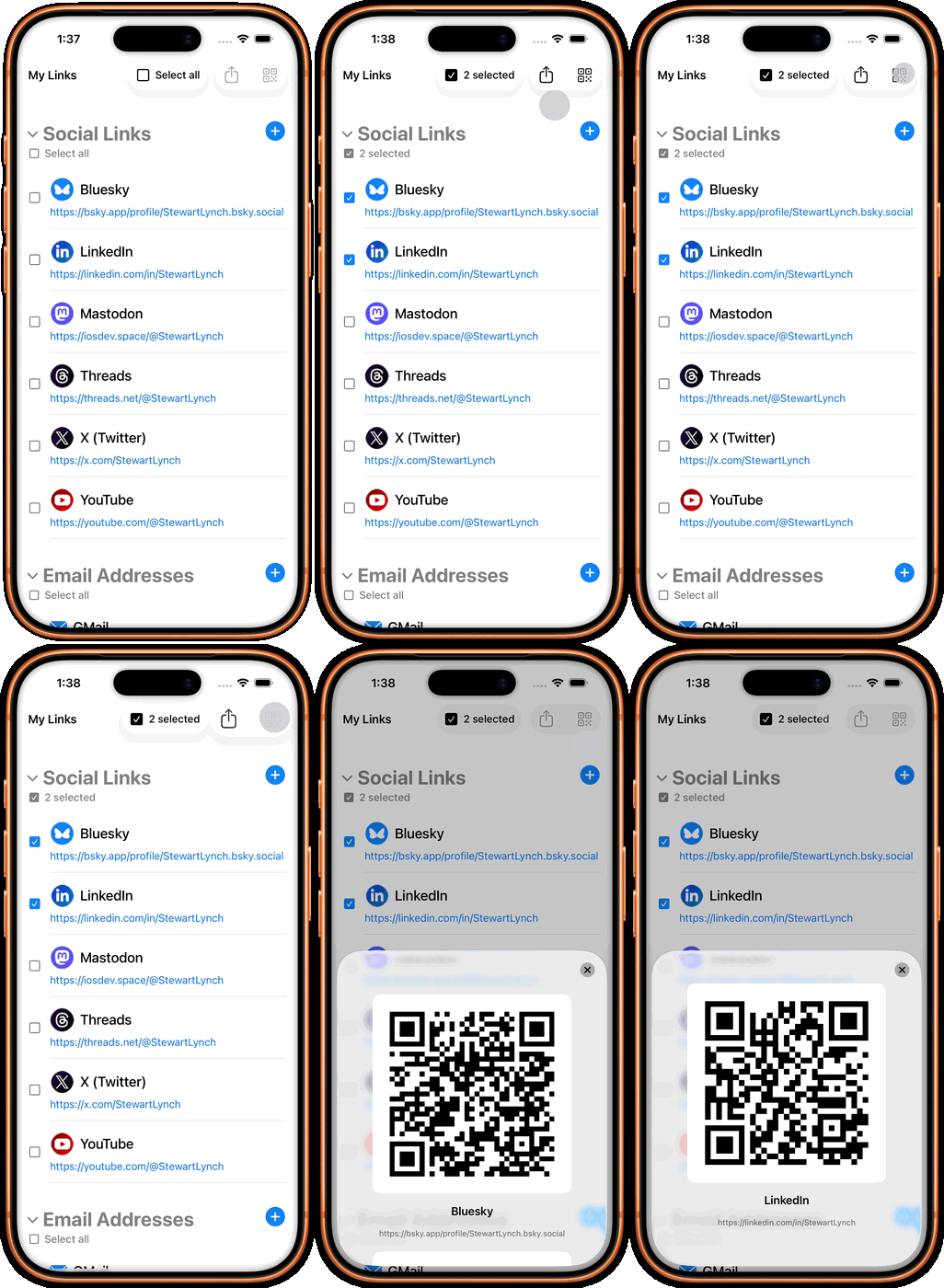
As I am thinking about enhancements for my recently released app MyLinks I thought that I would like an option to generate a QR code for any one or series of those links so that I could tap on a share button to present a modal sheet that will show the QRCode on the screen and then people that I am sharing with can simply scan the code to open the link.
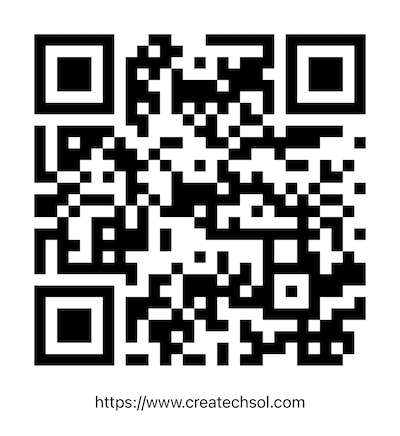
As I am doing that, I thought that it might be helpful to write a blog post for my website about how to generate a QR code from a string and present it on the screen so that is what this blog post is about.
The Goal
We want a tiny helper that lets us write this:
if let image = QRCodeGenerator.image(from: "https://www.createchsol.com") { image .interpolation(.none) .resizable() .scaledToFit()}The helper should hide the Core Image setup so the view does not have to know anything about filters, contexts, image extents, or scaling transforms.
Why Use an Enum?
For this example, QRCodeGenerator is an enum with static functions:
enum QRCodeGenerator { static func image(from text: String) -> Image? { // Generate a QR code image }}This is a nice fit because the type does not need to store app state. It is more like a toolbox than an object. You are not creating "a QR code generator" that has a lifecycle; you are calling a utility function that converts input into output.
Using an enum with no cases also prevents accidental initialization:
let generator = QRCodeGenerator() // Not possibleThat is exactly what we want for a simple namespace.
The Core Image Filter
Apple gives us a built-in QR code filter through Core Image:
CIFilter.qrCodeGenerator()The filter expects its message as Data, so a Swift String needs to be converted first:
filter.message = Data(text.utf8)It also supports an error correction level:
filter.correctionLevel = "M"The common levels are:
L: LowM: MediumQ: QuartileH: High
Higher correction levels make the QR code more resilient if it is partially damaged or obscured, but they can also make the code denser. M is a sensible default for everyday generated codes.
The QRCodeGenerator Type
There are two imports besides SwiftUI.
I import CoreImage.CIFilterBuiltins so I can use Core Image’s typed, Swift-friendly filter APIs like CIFilter.qrCodeGenerator(). It avoids older string-based filter creation and gives clearer, safer code with autocomplete for properties like message and correctionLevel
I import UIKit because the generator returns a UIImage.
Here is the full helper:
import CoreImage.CIFilterBuiltinsimport SwiftUIimport UIKit@MainActorenum QRCodeGenerator { private static let context = CIContext() static func image(from text: String) -> Image? { guard let uiImage = uiImage(from: text) else { return nil } return Image(uiImage: uiImage) } static func uiImage(from text: String) -> UIImage? { let filter = CIFilter.qrCodeGenerator() filter.message = Data(text.utf8) filter.correctionLevel = "M" guard let outputImage = filter.outputImage else { return nil } let scaledImage = outputImage.transformed( by: CGAffineTransform(scaleX: 12, y: 12) ) guard let cgImage = context.createCGImage( scaledImage, from: scaledImage.extent ) else { return nil } return UIImage(cgImage: cgImage) }}There are two public functions here:
image(from:)returns a SwiftUIImage, which is convenient for displaying in a view.uiImage(from:)returns aUIImage, which is useful if you later want to share, save, or render the QR code into another image (and I do that in the sample project referenced at the end of this post).
The SwiftUI function simply builds on top of the UIKit function.
Why Scale the Output Image?
Core Image's QR code output starts very small. If you display it directly and let SwiftUI stretch it, the result can become blurry.
This line scales the Core Image output before turning it into a CGImage:
let scaledImage = outputImage.transformed( by: CGAffineTransform(scaleX: 12, y: 12))Then, when displaying the final image in SwiftUI, use:
.interpolation(.none)That tells SwiftUI not to smooth the hard edges. QR codes are supposed to look like crisp little block mosaics, not soft watercolor paintings.
A Minimal SwiftUI Example
Here is a small view that uses the helper:
import SwiftUIstruct ContentView: View { @State private var text = "" @State private var qrCodeText = "" private var qrCodeImage: Image? { guard !qrCodeText.isEmpty else { return nil } return QRCodeGenerator.image(from: qrCodeText) } var body: some View { NavigationStack { Form { Section("QR Code Content") { TextField("Enter text or a URL", text: $text) .textInputAutocapitalization(.never) .autocorrectionDisabled() Button("Generate QR Code") { let trimmedText = text.trimmingCharacters( in: .whitespacesAndNewlines ) guard !trimmedText.isEmpty else { return } qrCodeText = trimmedText } .disabled( text.trimmingCharacters(in: .whitespacesAndNewlines).isEmpty ) } if let qrCodeImage { Section("Preview") { qrCodeImage .interpolation(.none) .resizable() .scaledToFit() .frame(width: 240, height: 240) .padding() .background(.white) } } } .navigationTitle("QR Code Generator") } }}Notice the two pieces of state:
@State private var text = ""@State private var qrCodeText = ""text is what the user is currently typing. qrCodeText is the committed value used to generate the QR code.
That small separation keeps the UI predictable. The QR code changes only when the user taps the button, not every time a character is typed.
Handling Failure
Both of the QRCodeGenerator image functions return optionals:
static func image(from text: String) -> Image?static func uiImage(from text: String) -> UIImage?That is intentional. QR generation can fail, especially with very large strings. Returning nil gives the view a clean way to show a fallback message:
if let image = QRCodeGenerator.image(from: qrCodeText) { image .interpolation(.none) .resizable() .scaledToFit()} else { ContentUnavailableView( "QR Code Unavailable", systemImage: "qrcode", description: Text("Enter shorter text and try again.") )}Where the Full Sample App Goes Further
You can find a full sample application on GitHub. https://github.com/StewartLynch/QRCodeGenerator
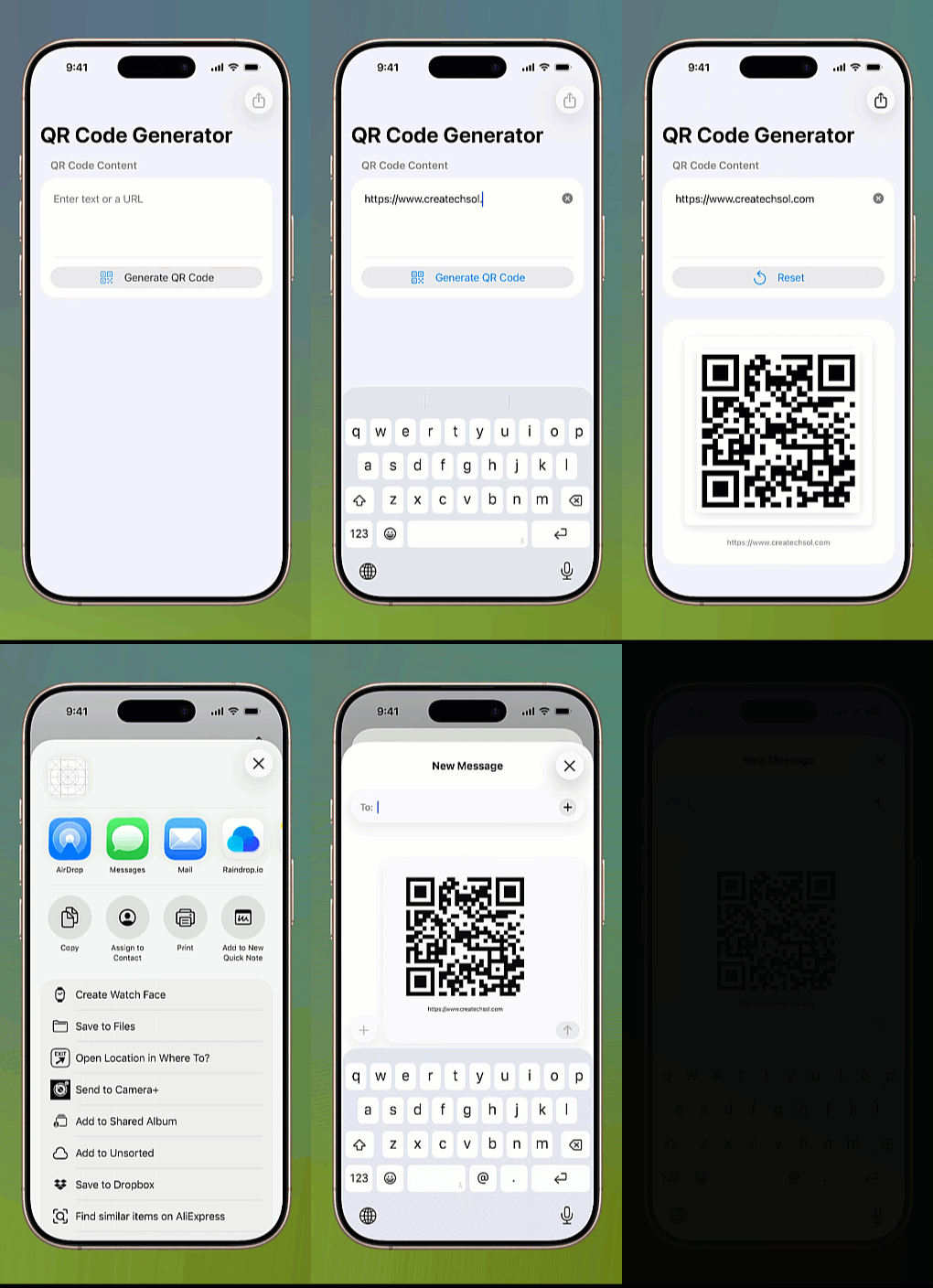
The full GitHub sample app builds on this focused helper with:
- A larger text editor
- Empty-state handling
- Reset behavior
- A polished preview
- Share sheet support
- A custom share image that includes both the QR code and the original text
But the core idea remains the same: keep the QR generation logic isolated in one small type, then let SwiftUI focus on the user experience.
That separation is the quiet win. The view handles interaction. The generator handles generation. Each part has one job, and neither has to pretend to be the other.