
Enum Sheets

Using Enums That Conform to View for Cleaner Sheet Presentations in SwiftUI
SwiftUI makes presenting sheets incredibly easy, but as an application grows, managing multiple sheets can become messy. It's common to see several Boolean properties dedicated to controlling different presentations:
@State private var showingSettings = false@State private var showingProfile = false@State private var showingHelp = falseThis approach works, but it doesn't scale well. Every new sheet requires another state property, additional presentation logic, and more maintenance.
In this blog post, I'll show you a technique I use to simplify sheet presentations by creating an enum that conforms to both View and Identifiable. The result is cleaner code, fewer state properties, and a more scalable architecture.
The Traditional Approach
Consider a view with three buttons that present three different sheets.
struct TradionionalView: View { @State private var showingSettings = false @State private var showingProfile = false @State private var showingHelp = false var body: some View { NavigationStack { VStack { Button("Settings") { showingSettings = true } Button("Profile") { showingProfile = true } Button("Help") { showingHelp = true } } .buttonStyle(.bordered) .navigationTitle("Enum Sheets") .sheet(isPresented: $showingSettings) { SettingsView() } .sheet(isPresented: $showingProfile) { ProfileView() } .sheet(isPresented: $showingHelp) { HelpView() } } }}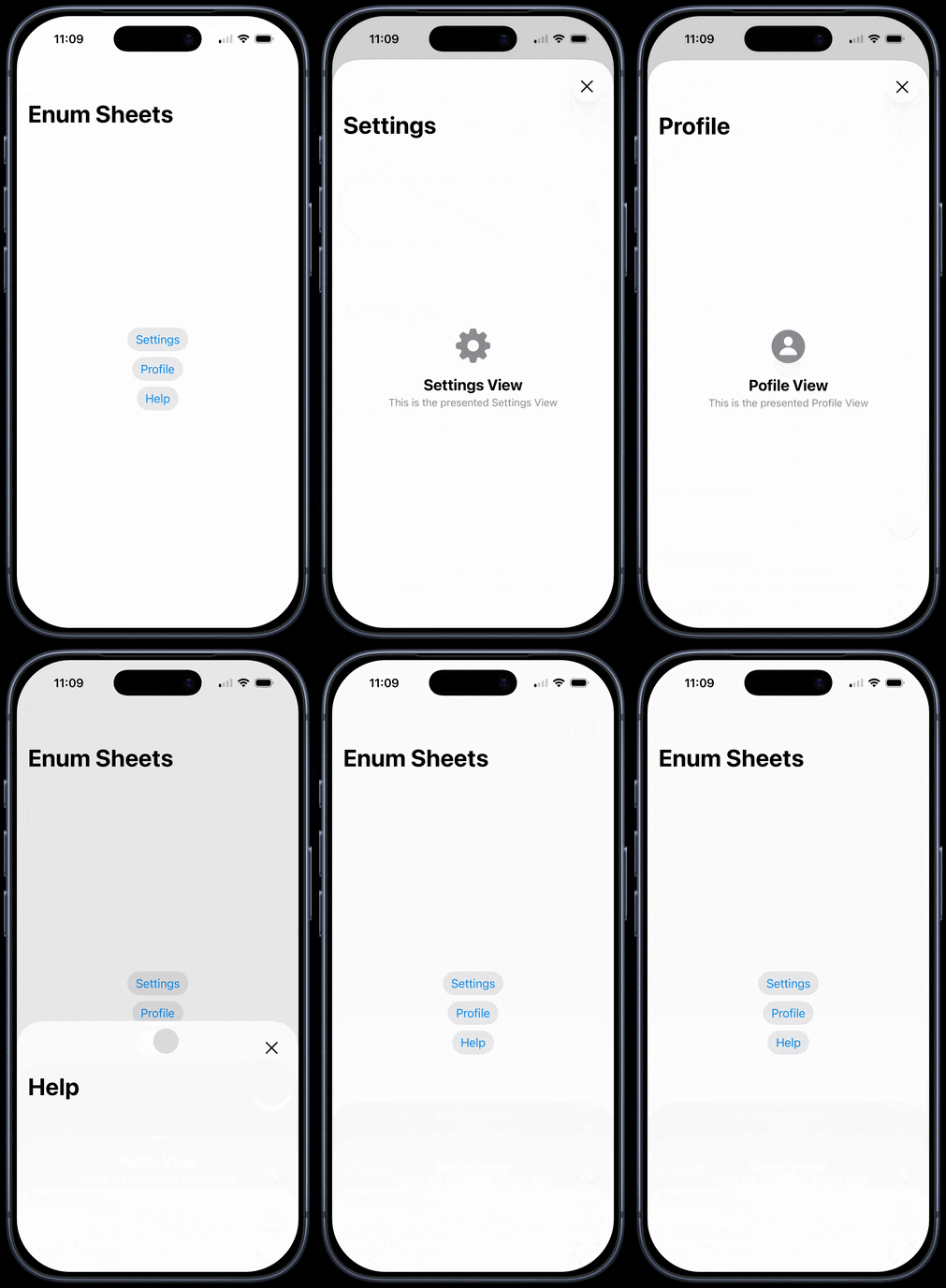
Although functional, this solution has several drawbacks:
- Multiple Boolean state properties
- Multiple sheet modifiers
- More code to maintain
- Greater chance of presentation conflicts
A Better Solution
Instead of tracking multiple Boolean values, we can track a single enum value representing the sheet that should be presented.
First, create an enum that conforms to Identifiable and View.
enum ActiveSheet: Identifiable, View { case settings case profile case help var id: Self { self } var body: some View { switch self { case .settings: SettingsView() case .profile: ProfileView() case .help: HelpView() } }}This enum serves two purposes:
- It identifies which sheet should be presented.
- It knows how to build the view associated with each case.
Presenting the Sheet
Now we only need a single optional state property.
@State private var activeSheet: ActiveSheet?The main view becomes much simpler.
struct EnumSheetView: View { @State private var activeSheet: ActiveSheet? var body: some View { NavigationStack { VStack { Button("Settings") { activeSheet = .settings } Button("Profile") { activeSheet = .profile } Button("Help") { activeSheet = .help } } .buttonStyle(.bordered) .navigationTitle("Enum Sheets") .sheet(item: $activeSheet) { sheet in sheet } } }}That's it.
The sheet modifier receives the enum instance and simply presents it because the enum itself conforms to View.
Why This Works
The .sheet(item:) modifier requires an optional value that conforms to Identifiable.
By making the enum conform to Identifiable, SwiftUI can determine when a new sheet should be presented.
var id: Self { self }Because each enum case is unique, using self as the identifier works perfectly.
At the same time, conforming to View allows each case to generate its own destination view.
var body: some View { switch self { case .settings: SettingsView() case .profile: ProfileView() case .help: HelpView() }}Because the enum conforms to View, there is no need to add @ViewBuilder to the body property here. The switch branches each return a view, and SwiftUI can infer the result.
The enum becomes both the navigation state and the destination view.
Supporting Associated Values
This pattern becomes even more powerful when working with associated values.
Consider this, where I have a new enum that is similar to ActiveSheet, except that the help case now has an associated value that is a String.
enum ActiveSheet2: Identifiable, View { case settings case profile case help(String) var id: String { switch self { case .help: return "help" default: return String(describing: self) } } var body: some View { switch self { case .settings: SettingsView() case .profile: ProfileView() case .help(let helpString): HelpView(helpString: helpString) } }}Note. Because the enum has at least one case with an associated value, we needed to change the id property to String and provide a specific value for the help case. For the other two cases that do not have associated values, the id property can be String(describing:
For the enum body, we can extract the associated value from the case and pass that in to the HelpView that can also accept a String parameter
case .help(let helpString): HelpView(helpString: helpString)}Presenting a specific user becomes straightforward.
Button("Help") { activeSheet = .help("This is the associated help string for this second view")}The enum now carries both the destination type and any data required by the destination.
The Final Refinement
Once the enum conforms to View, the sheet presentation code can be simplified even further.
Many developers write:
.sheet(item: $activeSheet) { sheet in sheet}While perfectly valid, the closure is simply returning the value it receives.
Since ActiveSheet already conforms to View, we can shorten this to:
.sheet(item: $activeSheet) { $0 }This works because the closure parameter is an instance of ActiveSheet, and ActiveSheet is itself a view.
At this point, the enum serves three distinct roles:
- Navigation state
- Sheet identifier
- Sheet content
The entire presentation logic is reduced to a single line of code.
.sheet(item: $activeSheet) { $0 }This is one of the most compelling reasons to adopt this pattern. The presentation code becomes almost trivial while remaining fully type-safe.
The Evolution of the Pattern
It's interesting to see how this approach evolves as your SwiftUI knowledge grows.
Step 1: Multiple Boolean Properties
@State private var showingSettings = false@State private var showingProfile = false@State private var showingHelp = falseStep 2: A Single Enum State
@State private var activeSheet: ActiveSheet?Step 3: The Enum Becomes the Destination
enum ActiveSheet: Identifiable, View { case settings case profile case help var id: Self { self } var body: some View { switch self { case .settings: SettingsView() case .profile: ProfileView() case .help: HelpView() } }}Step 4: Presentation Logic Becomes One Line
.sheet(item: $activeSheet) { $0 }At this stage, the enum completely encapsulates the sheet presentation logic. All the view needs to do is assign the appropriate case.
Advantages of This Pattern
Single Source of Truth
Only one state property controls all sheet presentations.
@State private var activeSheet: ActiveSheet?Easy to Extend
Adding another sheet only requires a new enum case.
case aboutAnd one additional switch branch.
case .about: AboutView()Better Organization
All sheet destinations live in one place instead of being scattered throughout the view hierarchy.
Type Safety
The compiler ensures every case is handled in the switch statement.
Less Boilerplate
No more collection of Boolean flags cluttering your view.
When Should You Use This?
This pattern works especially well when:
- A view can present multiple sheets
- Sheet destinations are known in advance
- You want centralized presentation logic
- You want to reduce state management complexity
For simple views with a single sheet, the traditional Boolean approach is perfectly acceptable. However, once you have three or more destinations, this enum-based approach often becomes easier to maintain.
Complete Example
enum ActiveSheet2: Identifiable, View { case settings case profile case help(String) var id: String { switch self { case .help: return "help" default: return String(describing: self) } } var body: some View { switch self { case .settings: SettingsView() case .profile: ProfileView() case .help(let helpString): HelpView(helpString: helpString) } }}struct EnumAssociatedValueView: View { @State private var activeSheet: ActiveSheet2? var body: some View { NavigationStack { VStack { Button("Settings") { activeSheet = .settings } Button("Profile") { activeSheet = .profile } Button("Help") { activeSheet = .help("This is the associated help string for this second view") } } .buttonStyle(.bordered) .navigationTitle("Enum Sheets") .sheet(item: $activeSheet) { sheet in sheet } } }}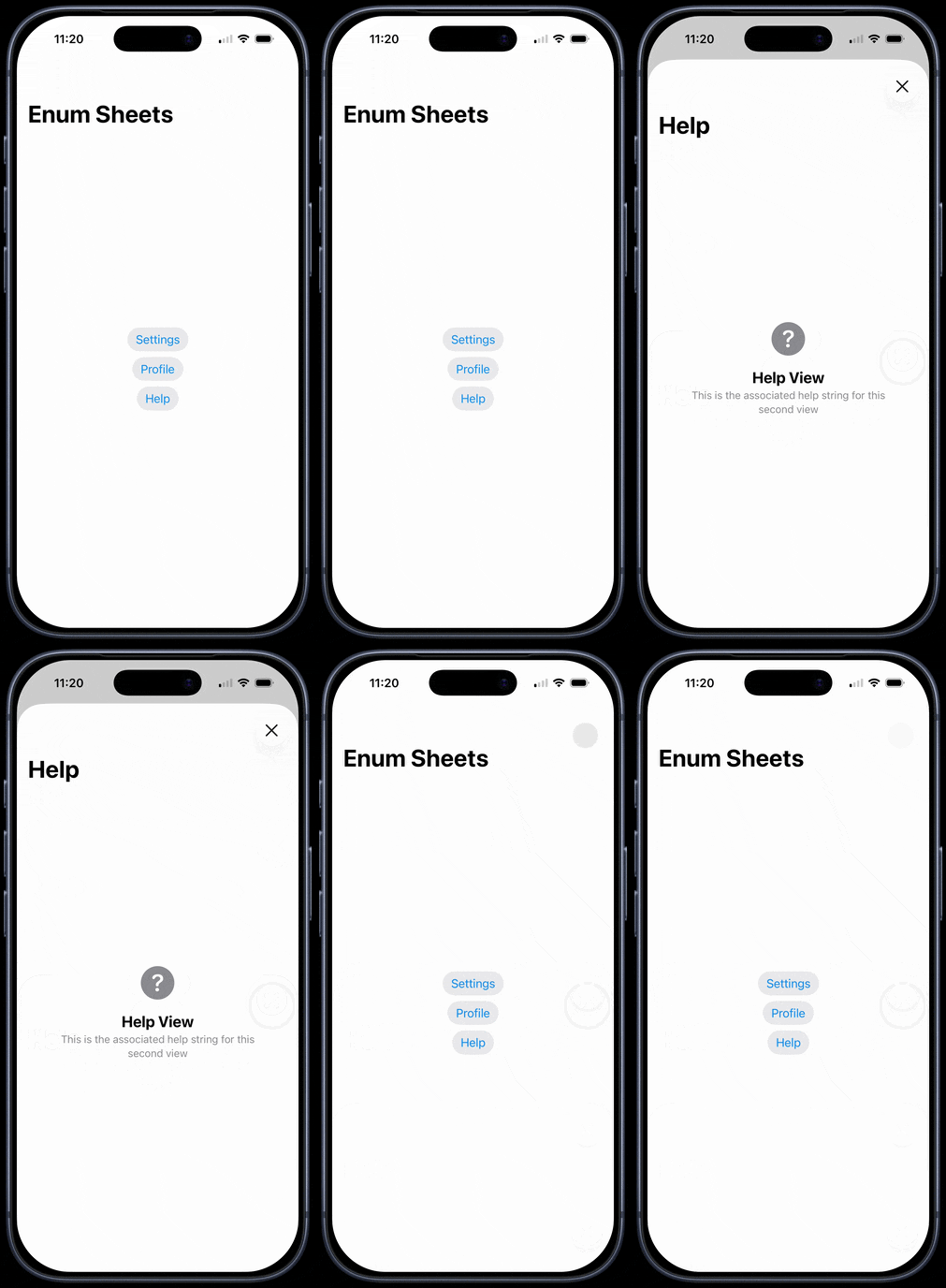
The Same Pattern Works with fullScreenCover
One of the benefits of having your enum conform directly to View is that the same approach works with fullScreenCover.
Instead of:
.sheet(item: $activeSheet) { $0 }You can simply write:
.fullScreenCover(item: $activeSheet) { $0 }The enum doesn't care whether it is being presented as a sheet or a full-screen cover. It is still responsible for generating the destination view.
struct EnumSheetView: View { @State private var activeSheet: ActiveSheet? var body: some View { NavigationStack { VStack { Button("Settings") { activeSheet = .settings } Button("Profile") { activeSheet = .profile } Button("Help") { activeSheet = .help } } .buttonStyle(.bordered) .navigationTitle("Enum Sheets") .fullScreenCover(item: $activeSheet) { $0 } } }}This flexibility can be particularly useful when requirements change. You may initially present content as a sheet and later decide it should be full-screen. With this pattern, the only change required is swapping the presentation modifier.
.sheet(item: $activeSheet) { $0 }becomes
.fullScreenCover(item: $activeSheet) { $0 }Everything else remains exactly the same.
The enum continues to provide:
- Navigation state
- Unique identification
- Destination content
This further demonstrates how powerful it can be to allow the enum to own the presentation logic.
Final Thoughts
Using enums that conform to View is a simple but powerful SwiftUI technique. It allows you to combine navigation state and destination views into a single type, resulting in cleaner, more maintainable code.
The next time you find yourself adding a fourth or fifth Boolean property just to present another sheet, consider replacing them with a single enum. Your future self will thank you.
GitHub Repo:
You can find a the completed source code on GitHub.