
Transition or ContentTransition
SwiftUI transition vs contentTransition: What Actually Changes?
Learn when to use transition and contentTransition in SwiftUI by asking one question: is the view entering or leaving, or is its content changing in place?
SwiftUI has two modifiers with remarkably similar names:
.transition(...).contentTransition(...)They both describe how a change should look, and both need an animation to bring that change to life. But they solve two different problems.
Here is the distinction to remember:
Use
transitionwhen a view is inserted into or removed from the view hierarchy. UsecontentTransitionwhen a view stays in place but the content it displays changes.
That is the entire idea. Let’s make it visible.
The difference at a glance
| What changed? | Before | After | Modifier |
|---|---|---|---|
| The view hierarchy | No Text view | A Text view exists | transition |
| The content of an existing view | Text("9") | Text("10") | contentTransition |
transition: a view enters or leaves
Consider a view controlled by an if statement:
VStack { Button(showMessage ? "Remove View" : "Insert View") { withAnimation { showMessage.toggle() } } .buttonStyle(.bordered) ZStack { if showMessage { Text("I enter and leave") .font(.title3.bold()) } } .frame(height: 40)}When showMessage becomes false, the Text view is removed. When it becomes true, the Text view is inserted again.

This can be visually improved by adding a transition to the view that is being inserted or removed
if showMessage { Text("Hello, SwiftUI!") .font(.title) .transition(.slide)}The .slide transition describes how that insertion and removal should happen.
However, must also apply an animation to the state property that is triggering the animation
Button(showMessage ? "Remove View" : "Insert View") { withAnimation { showMessage.toggle() }}
There are several different transitions that you can apply
| Transition | Effect |
|---|---|
| Identity | No visual transition |
| Opacity | Fades in or out |
| Slide | Enters from leading; exits toward trailing |
| Move | Moves to and from one specified edge |
| Scale | Scales between nearly zero and full size |
| Custom scale | Uses a custom scale and anchor |
| Push | Pushes the new and old content from an edge |
| Offset | Moves by a specified distance |
Many of these transitions have additional parameters like edges, offsets and scales.
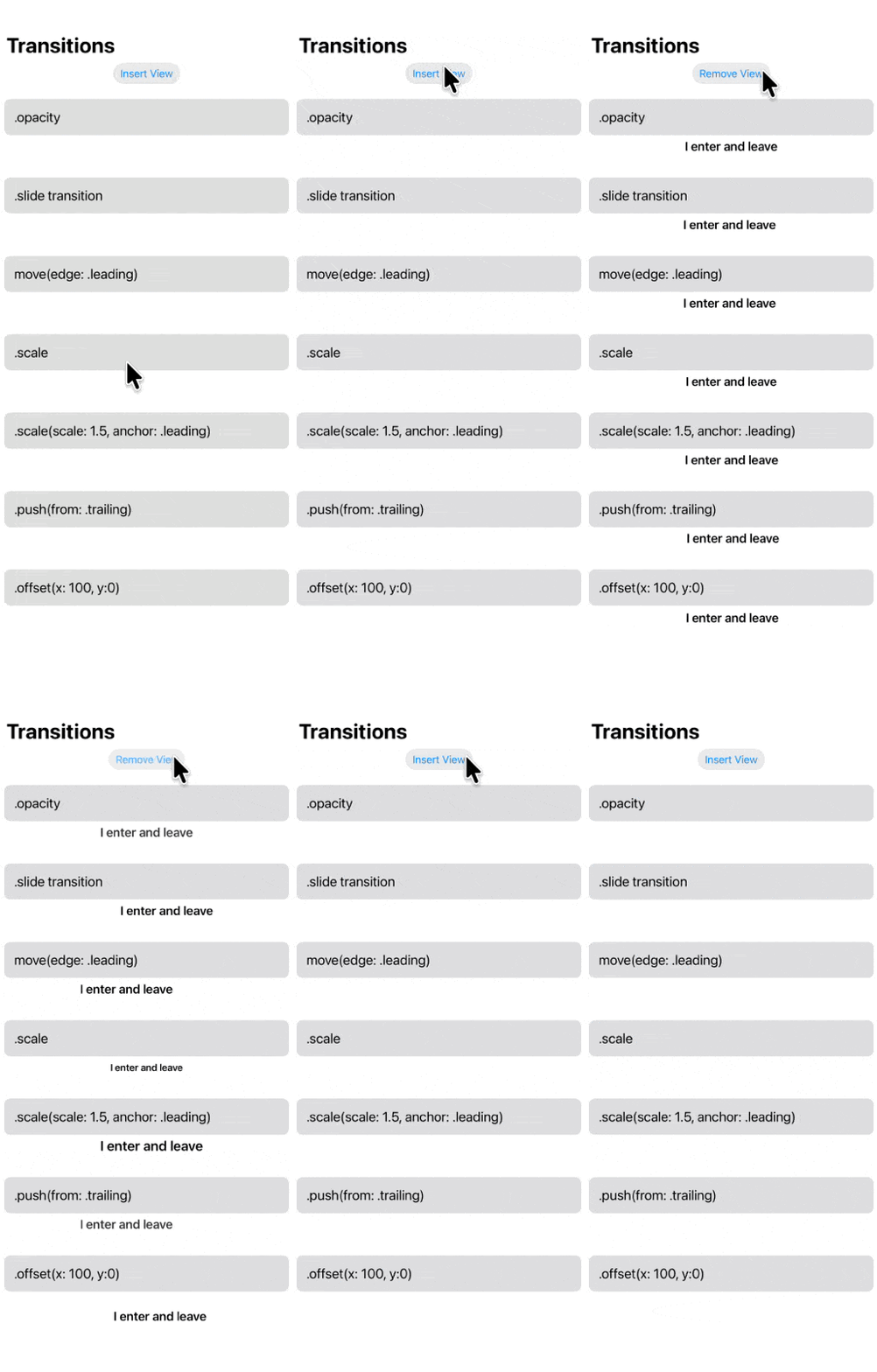
There are two additional transitions that are rather special
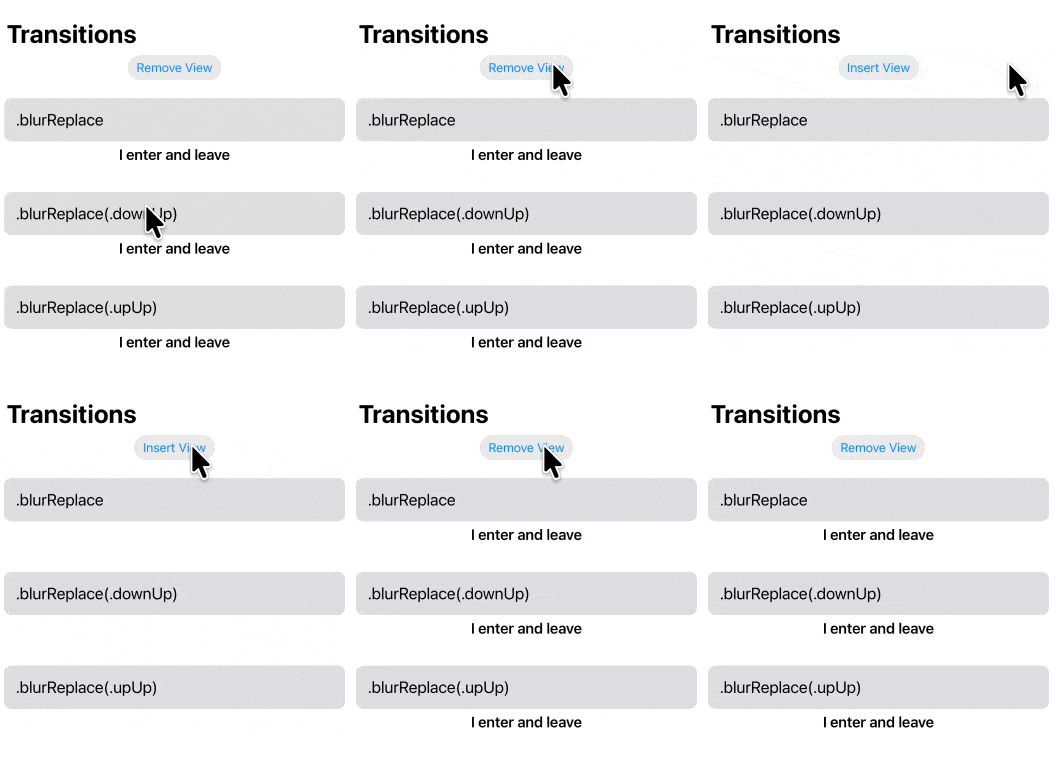
Blur-replacement configurations
.transition(.blurReplace.transition(.blurReplace(.downUp)).transition(.blurReplace(.upUp))The differences are very subtle
Combined Transitions
You can also combine transitions like this
.transition( .move(edge: .trailing) .combined(with: .opacity))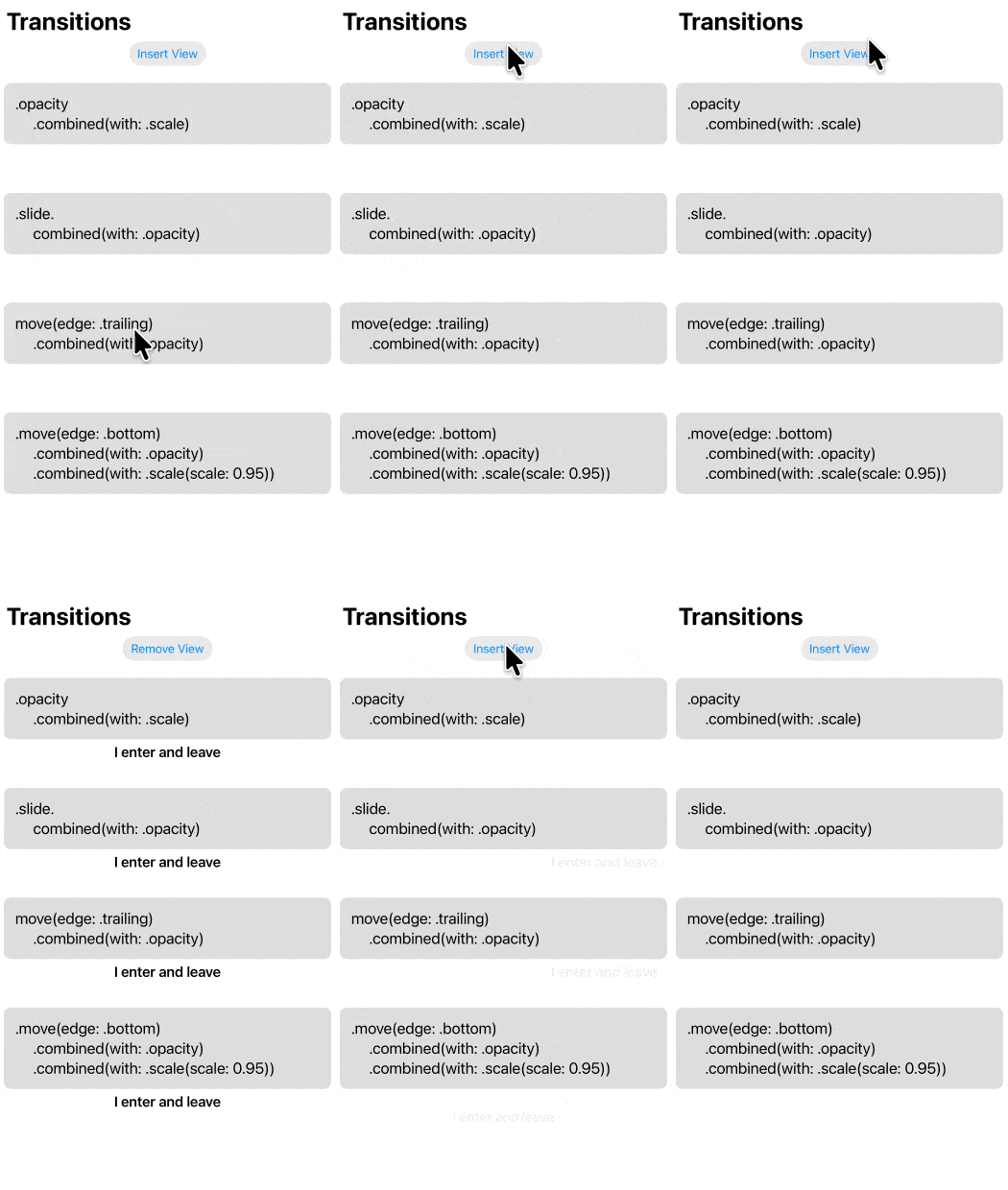
In every case, the important fact is not that some state changed. It is that the state change caused the view to enter or leave the hierarchy and the trigger must be within an animation block
If you enjoy my videos, I have a YouTube video on this topic as well
Mastering SwiftUI Transitions – Custom & Built-in Animations
SF Symbol view-transition effects
As a special case of view transitions, there are now SFSymbol transitions too.
These transitions only affect views constructed by SFSymbols
.transition(.symbolEffect(.automatic)).transition(.symbolEffect(.appear)).transition(.symbolEffect(.disappear)).transition(.symbolEffect(.appear.up)).transition(.symbolEffect(.appear.down)).transition(.symbolEffect(.drawOn)) // iOS 26+.transition(.symbolEffect(.drawOff)) // iOS 26+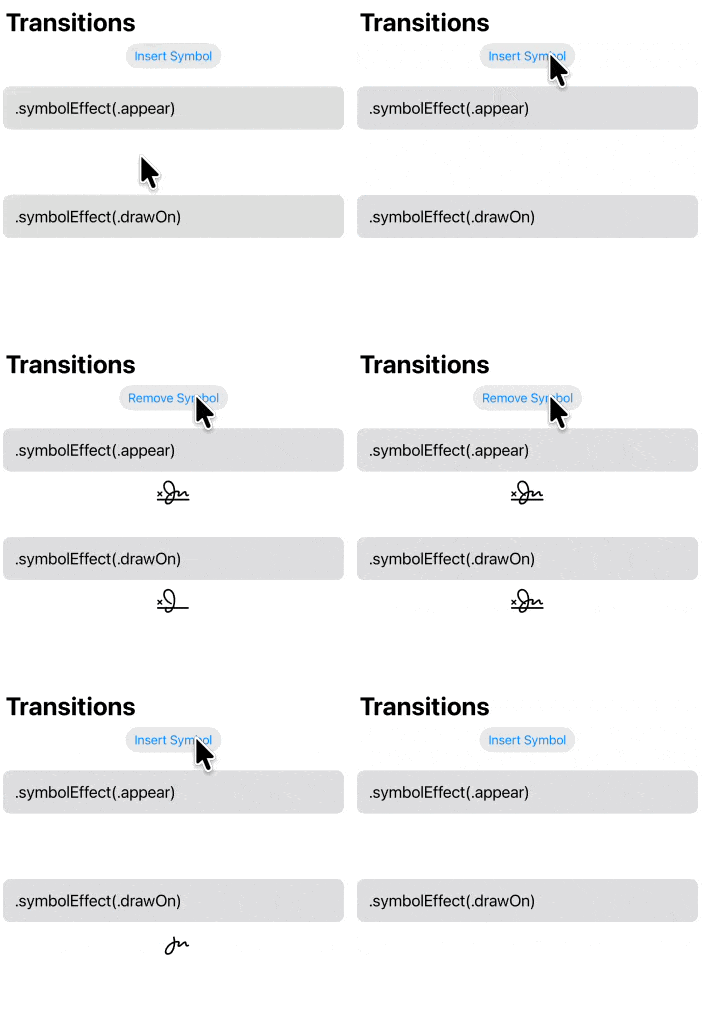
You can do much more with SFSymbol effect transitions and encourage you to watch my YouTube video on that topic.
SFSymbol Animations in iOS 17
contentTransition: the view stays, its content changes
Now consider a counter:
struct CounterExample: View { @State private var count = 0 var body: some View { VStack(spacing: 20) { Text(count, format: .number) .font(.system(size: 64, weight: .bold)) HStack { Button("Decrease") { withAnimation { count -= 1 } } Button("Increase") { count += 1 } } } }}When you tap on Decrease or Increase the state value changes and the view updates. It is not moving in our out of the view, but the content is changing.
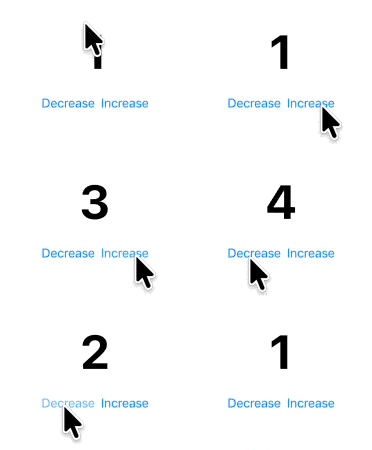
However, the transition from one number to another is not very exciting. We can improve this by applying a contentTransition. Like a transition it too requires two parts. A contentTransition modifier and an animation block surrounding the trigger.
Text(count, format: .number) .font(.system(size: 64, weight: .bold)) .contentTransition( .numericText(value: Double(count)) )And
Button("Decrease") { withAnimation { count -= 1 }}Button("Increase") { withAnimation { count += 1 }}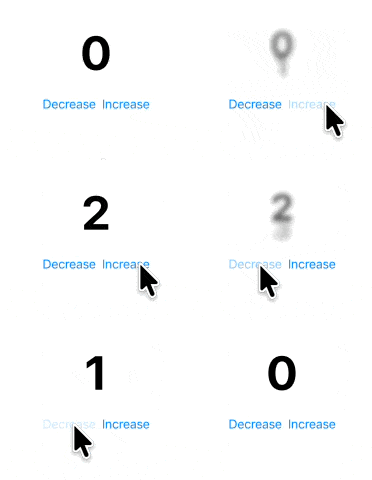
In this case, we used a numericText content transition where it is observing the value of the count variable which has to be cast as a Double.
SwiftUI provides five main content-transition families, with two forms of numericText.
| Content transition | Purpose |
|---|---|
identity | Makes the content change immediately without a visual transition |
opacity | Cross-fades between the old and new content |
interpolate | Interpolates matching text glyphs and their visual properties |
numericText | Animates changing numeric text vertically |
symbolEffect | Animates between SF Symbols or symbol configurations |
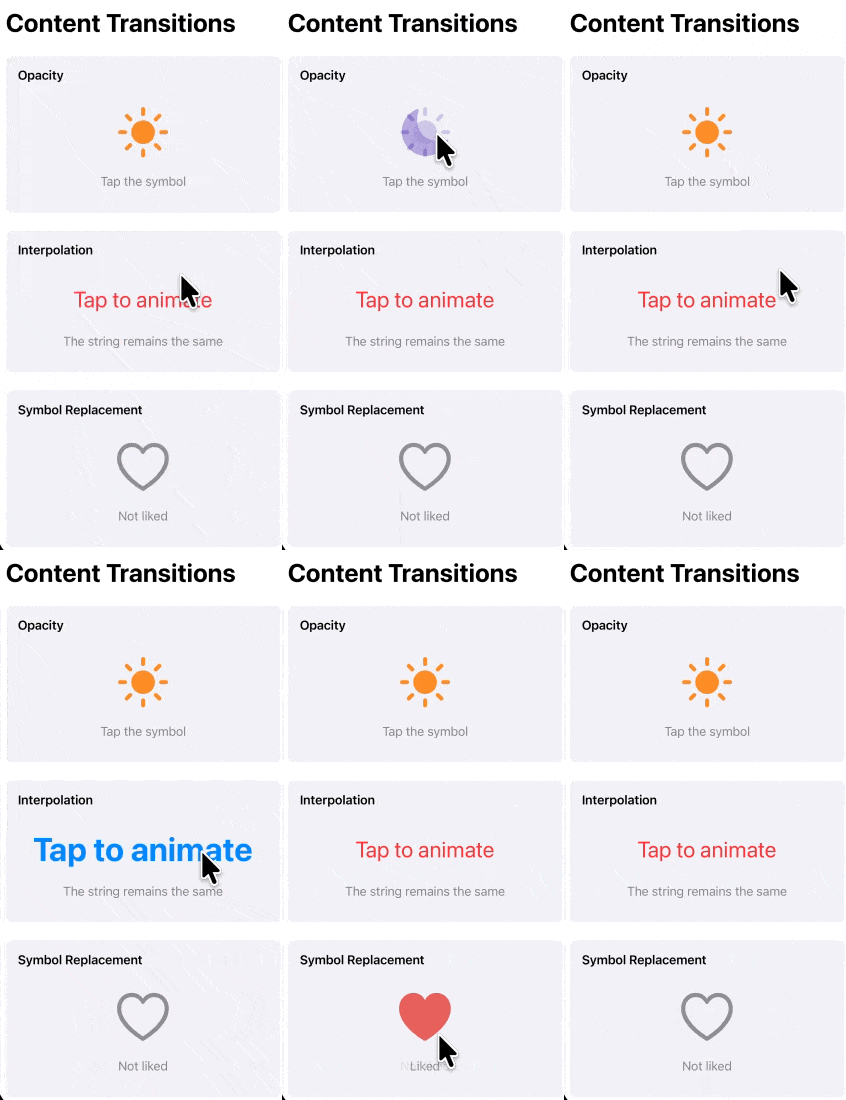
Sample content transitions
Once you know that the content is changing in place, SwiftUI offers several useful choices.
Numeric text
Text(count, format: .number) .contentTransition(.numericText(value: Double(count)))This is ideal for counters, scores, totals, timers, and changing measurements.
Opacity
Image(systemName: isDaytime ? "sun.max.fill" : "moon.fill") .contentTransition(.opacity)This gives changing text or images a simple cross-fade.
Interpolation
Text("Tap to animate") .font(.system(size: emphasized ? 40 : 32)) .foregroundStyle(emphasized ? .blue : .red) .contentTransition(.interpolate)When the text contains matching glyphs, interpolation can animate properties such as size, position, and color.
Symbol replacement
Image(systemName: isLiked ? "heart.fill" : "heart") .contentTransition(.symbolEffect(.replace))This is designed for changes between compatible SF Symbols.
A simple decision test
When you are unsure which modifier to use, look at the code that responds to the state change.
Ask these questions in order:
- Does an
if,switch, collection update, or identity change cause a view to appear or disappear?
Start with transition.
- Does the same
Text,Image, or other view remain while its displayed content changes?
Start with contentTransition.
- Did you provide an animation for the state change?
If not, neither transition will have an animated change to perform.
Final takeaway
The names are similar, but the jobs are not:
View enters or leaves → transitionView stays, content changes → contentTransitionOnce you focus on what actually changed—the hierarchy or the content—the choice becomes straightforward.
And as with all animation, restraint helps. A transition should clarify a change, not compete with it.