
SwiftUI Text Interpolation Beyond Plain Strings
SwiftUI Text Interpolation Beyond Plain Strings
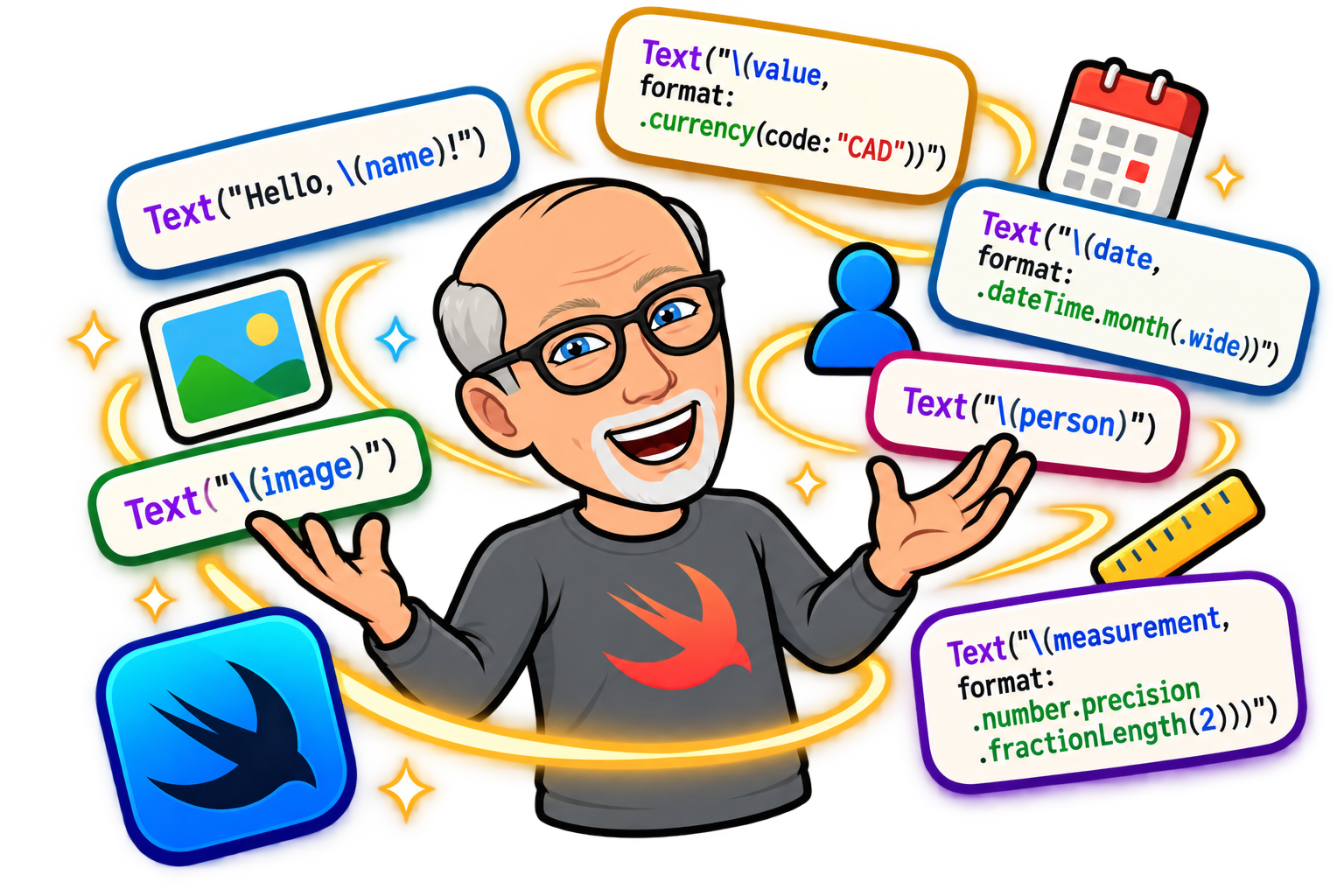
Text("Hello, (name)") looks like ordinary Swift string interpolation, but it is not. The literal you pass to Text is a LocalizedStringKey, and SwiftUI gives that type its own set of appendInterpolation overloads. That is why you can drop a number, a date, another Text view, or even an Image straight into the braces and get formatted, localizable output without building a string yourself.
In this post we will look at three kinds of values you can interpolate: numbers, dates, and styled content. Then we will finish with the gotchas that trip people up.
Text("Hello, \(name)")One rule to keep in mind before we start. These overloads only apply to string literals. If you pass an existing String variable, as in Text(someString), SwiftUI shows it verbatim and none of the interpolation features below are involved.
Numbers: let a format style do the work
The most useful overload is \(value, format: someFormatStyle). It accepts any Foundation FormatStyle, so counts, currency, percentages and measurements all follow the user's locale automatically.
struct OrderSummary: View { @Environment(\.locale) private var locale let items = 3 let total = 1234.5 let discount = 0.15 // Falls back to USD if the current locale has no currency (e.g. a region-less locale) private var currencyCode: String { locale.currency?.identifier ?? "USD" } var body: some View { VStack(alignment: .leading) { Text("Items: \(items, format: .number)") Text("Total: \(total, format: .currency(code: currencyCode))") Text("Discount: \(discount, format: .percent)") } }}In a US English local, this rendered like this:
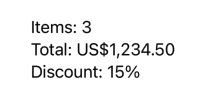
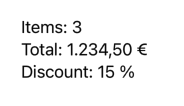
A German user sees the same values with their own separators and symbol placement, and you wrote no extra code.
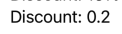
Format styles also chain, which lets you control precision inline. For example for the Discount above, you could write
Text("Discount: \(discount, format: .number.precision(.fractionLength(1)))")And this would display:
The same pattern covers other number-like types. A byte count uses Int64 with .byteCount(style: .file), and a Measurement uses .measurement(width: .abbreviated):
let size: Int64 = 1_250_000let distance = Measurement(value: 5, unit: UnitLength.kilometers)Text("Download size: \(size, format: .byteCount(style: .file))")Text("Distance: \(distance, format: .measurement(width: .abbreviated))")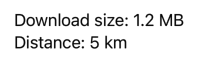
or
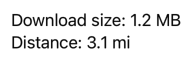
What about specifier:?
You will still see printf-style interpolation in older code, such as Text("\(total, specifier: "%.2f")"). It works, but it only pads and rounds. It knows nothing about currency symbols, grouping separators or the user's locale. Prefer format: for anything the user reads.
Dates: three ways to show one value
Dates give you the most options, because SwiftUI offers both Foundation format styles and its own date styles that keep themselves up to date.
Format styles
The format: overload works for Date exactly as it does for numbers. You pick only the components you want, and the locale decides their order and wording.
let due = Date.now.addingTimeInterval(3 * 24 * 60 * 60)Text("Due \(due, format: .dateTime.weekday(.wide).month().day())")Text("Reminder at \(due, format: .dateTime.hour().minute())")Depending on the locale, the view can render the dates differently.

SwiftUI date styles
The style: overload takes a Text.DateStyle. The .date and .time styles show the date or the time. The .relative style shows the gap between the date and now, and .timer counts as a running clock. Because SwiftUI owns the rendering, the text refreshes by itself with no timer in your view.
Text("Due \(due, style: .date)")Text("Time left: \(due, style: .relative)")The exact wording of the relative style is localized, so check how it reads in your target languages before you build a sentence around it. For example:

Countdown timers
For a live countdown there is a dedicated interpolation that takes a date range:
let start = Date.nowvar end: Date { start.addingTimeInterval(5 * 60) }var body: some View { Text("Starts in \(timerInterval: start...end, countsDown: true)")}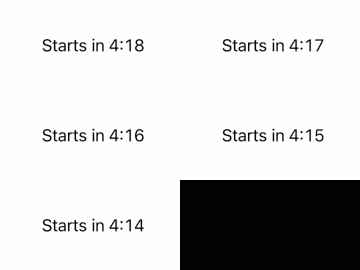
It also accepts pauseTime and showsHours, so you can freeze the display or hide the hours field.
Previewing other locales
Every example above follows the locale in the environment. To see how a date reads for another audience, override it in a preview:
#Preview { ContentView() .environment(\.locale, Locale(identifier: "fr_FR"))}Styled values: mixing looks inside one sentence
This is where interpolation really earns its place. You can put a styled Text inside another Text, and the result is still one text view that wraps and localizes as a whole.
Text("Status: \(Text("Overdue").bold().foregroundStyle(.red)) since \(due, format: .dateTime.month().day())")
The word "Overdue" is bold and red, the date is formatted for the locale, and the rest of the sentence uses the surrounding style.
Replacing the + operator
You may have combined styled pieces with + before. That operator is deprecated as of iOS 26. Apple's documentation explains that it hardcodes the order of parts of a sentence, which can break localization, especially for right-to-left languages. The replacement is interpolation:
// BeforeText("Tortilla chips with ") + Text("spicy").foregroundStyle(.red) + Text(" dip")// AfterText("Tortilla chips with \(Text("spicy").foregroundStyle(.red)) dip")
Translators now receive one complete sentence and can move the styled word wherever their language needs it.
Symbols inline
An Image can sit in the same sentence:
Text("\(Image(systemName: "star.fill")) Favorites") .font(.largeTitle)
The symbol scales with the text and follows the font, which is hard to get from an HStack.
Markdown in the literal
Markdown in the literal is parsed, so you can combine it with interpolated values:
let title = "My Links"let subtitle = "All your links in one location"Text("**\(title)**: *\(subtitle)*")The interpolated values are inserted as content, so asterisks that appear inside title or subtitle are not treated as formatting.

When Markdown is not enough: AttributedString
For a fixed sentence like the one above, Markdown in the literal is the simpler choice. AttributedString earns its place in two situations.
| Markdown in the literal | AttributedString | |
|---|---|---|
| Styles available | Bold, italic, code, strikethrough, links | Any attribute, such as font, color, background, underline |
| Where it is defined | In the Text(...) call | Anywhere, as a value you can build and return |
| Ranges known at | Compile time | Runtime |
The first situation is styling that depends on runtime data. A search highlight is the classic case, because you cannot know where the query falls until the user types it:
func highlighted(_ text: String, matching query: String) -> AttributedString { var result = AttributedString(text) if let range = result.range(of: query, options: .caseInsensitive) { result[range].backgroundColor = .yellow result[range].font = .body.bold() } return result}Text(highlighted(row.title, matching: searchText))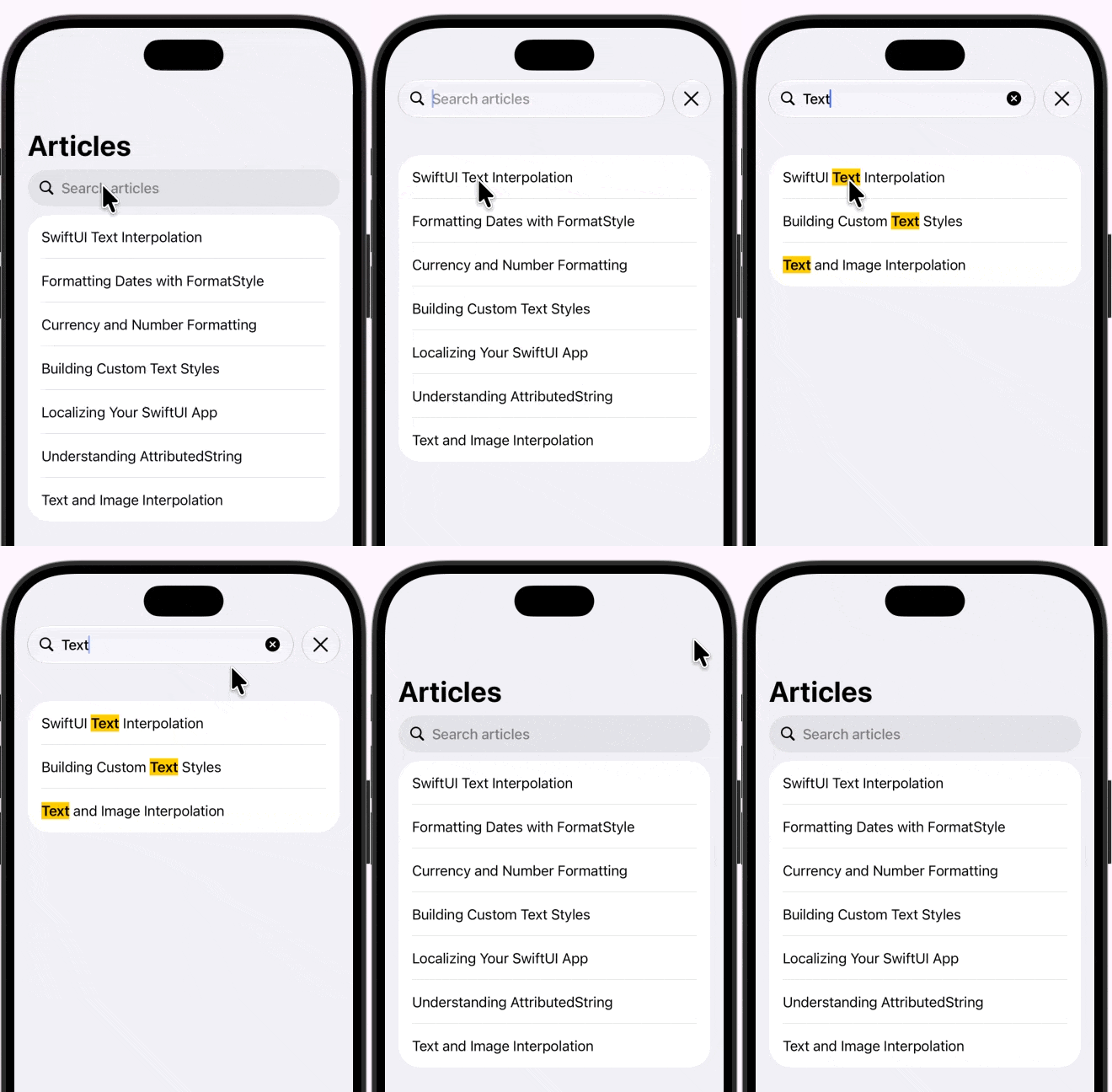
The second situation is any attribute Markdown cannot express, such as a background color or a custom font on part of a sentence.
When you combine differently styled pieces, append them instead of searching for ranges. Calling range(of:) returns the first match only, so if one piece of text also appears inside another, the wrong part gets styled:
var body: some View { NavigationStack { List(articles) { article in Text(styledLine(title: article.title, pageDescription: article.pageDescription)) } .navigationTitle("Articles") }}func styledLine(title: String, pageDescription: String) -> AttributedString { var line = AttributedString(title) line.font = .title2 var detail = AttributedString(": \(pageDescription)") detail.font = .body.italic() detail.foregroundColor = .lightGray line.append(detail) return line}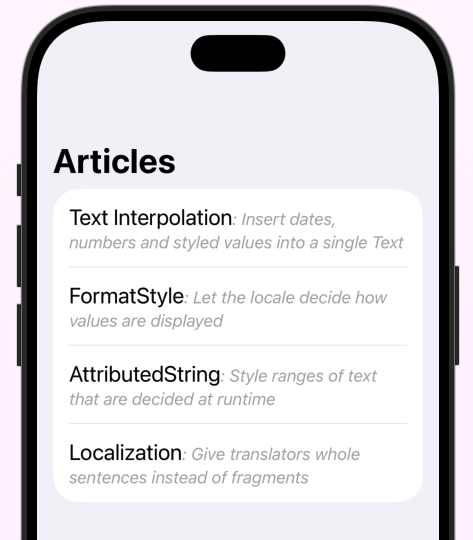
Since iOS 18, interpolation also accepts format styles that produce an AttributedString, such as Date.FormatStyle's attributedStyle, so formatted values can carry their own attributes.Gotchas worth knowing
Gotchas worth knowing
Modifiers on an inner Image break the chain. Interpolation needs an actual Image or Text. A modifier like foregroundStyle on an Image returns a generic view, so it will not compile inside the interpolation. Style the outer Text instead, and the symbol picks it up:
Text("hello \(Text("world").foregroundStyle(.blue)) \(Image(systemName: "diamond"))") .foregroundStyle(.red)
Variables skip all of this. Text(someString) is verbatim, and so is any value you build as a String first. If you want a literal that is never localized or parsed as Markdown, say so explicitly with Text(verbatim:).
Interpolation shapes your localization keys. Each interpolated value becomes a placeholder in the key that lands in your String Catalog, such as Due %@. Translators see the whole sentence and can reorder the placeholders. That is the main reason to prefer interpolation over concatenation.
Mind your deployment target. Check availability before you rely on a newer overload. Format styles that output AttributedString need iOS 18, and the deprecation of + on Text starts with iOS 26.
Keep logic out of the braces. A short format style is fine inline. Anything longer belongs in a computed property or a small helper, so the sentence stays readable.
Wrapping up
Interpolation in Text is a small feature with a large reach. Use format: for numbers and dates so the locale does the formatting. Use style: and timerInterval: when you want a date that updates itself. Nest Text and Image values when one sentence needs several looks, and reach for AttributedString only when ranges are decided at runtime.
If you still have Text + Text in a project, this is a good week to convert it. Your translators will thank you.