
# Availability in Swift: `#available`, `#unavailable` and `@available`
Learn how to write one codebase that adopts new iOS 27 features where they exist and still behaves on the older versions your users are running.
A note on how this post was written: This post was guided by Claude, an AI assistant from Anthropic, but it was not written entirely by Claude. I chose the topic, supplied the list of syntax I wanted to cover and directed the work throughout. Claude helped with drafting the text and the code examples, and I proofed, questioned, annotated and updated the document at every stage, asking for changes wherever something was unclear or did not make sense. The final content reflects my direction and my review.
Every year Apple ships a new version of iOS with new APIs, and every year your users upgrade at different speeds. iOS 27 is here, but plenty of devices are still on iOS 26 and earlier. If your app supports more than the latest release, you will eventually need to write code that says:
Use this new feature if the device supports it. Otherwise, do something else.
Swift gives you several tools for this, and they are easy to confuse because they look alike. Some run while the app is running on the user's device. Others are resolved before the app is ever built.
Here is the full list.
The syntax at a glance
| Syntax | Purpose | When evaluated |
|---|---|---|
if #available(...) | Branch based on OS availability | Runtime |
guard #available(...) | Require a version or exit | Runtime |
if #unavailable(...) | Branch for older OS versions | Runtime |
@available(...) | Declare API availability | Compile-time enforcement |
#if os(...) | Platform conditional | Compile time |
#if compiler(...) | Compiler-version conditional | Compile time |
#if canImport(...) | Module availability | Compile time |
The first four rows are the OS-availability tools. They answer the question:
What version of the OS is this app running on right now?
The #if family solves a different problem. It is conditional compilation: deciding which code is even handed to the compiler. I will cover those near the end, because they are closely related and you will often use them together.
For now, let's focus on the three core mechanisms: #available, #unavailable and @available.
First, your deployment target
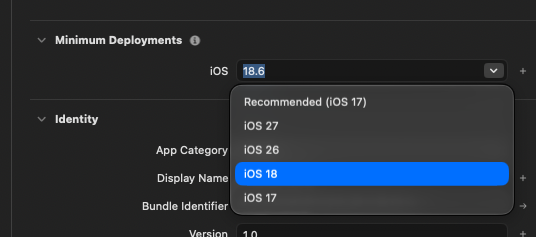
Everything in this post depends on your project's Minimum Deployments setting.
Suppose your app targets iOS 18 but you want to use something that arrived in iOS 27, such as the new cross-fade navigation transition. The compiler knows your app might run on iOS 18, so it will refuse to let you use that API unconditionally.
'crossFade' is only available in iOS 27.0 or newerThat error is not a nuisance. It is the compiler protecting you from a crash on an older device. Availability checks are how you give it the proof it needs.
Not everything new in an SDK needs a check. Some changes are back-deployed. The new
@Stateimplementation in Xcode 27, which I wrote about in A Change of State, works on earlier systems without any availability code from you. The API documentation is what tells you which case you are in.
#available: a runtime check
The most common tool is if #available.
if #available(iOS 27, *) { // Safe to use iOS 27 APIs here} else { // Fallback for earlier versions}The check happens at runtime, on the device, using the OS version that is actually installed.
What is the asterisk?
The * is required, and it means:
Any other platform not listed, assume the feature is available.
You can list several platforms:
if #available(iOS 27, macOS 27, visionOS 27, *) { // ...}You always end the list with *, even if you only ship on one platform.
A SwiftUI example
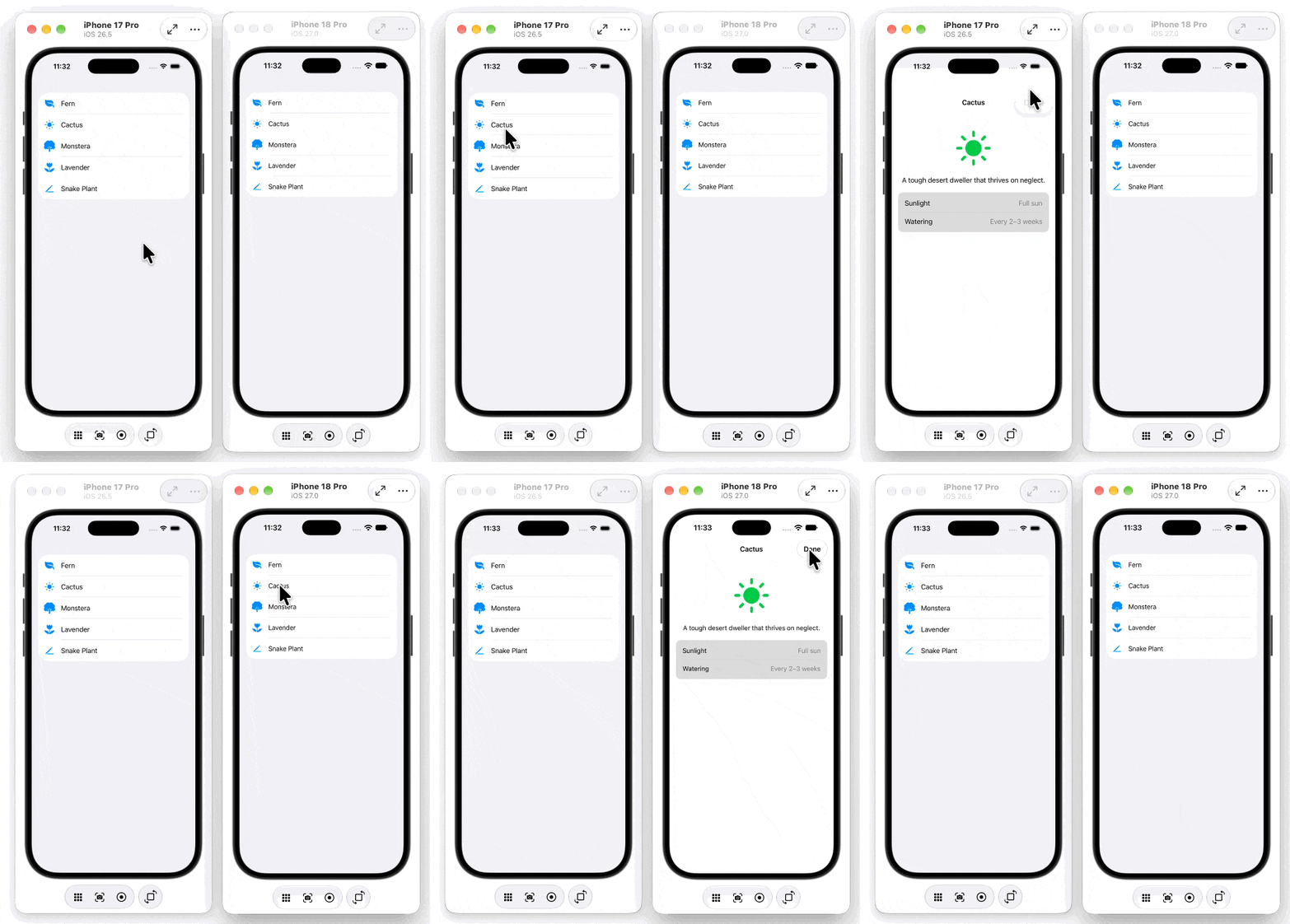
iOS 27 adds a cross-fade navigation transition that works without a source view, which makes it a good fit for sheets and full-screen covers.
Check out my video on this topic.
SwiftUI View Transitions - Zoom, Cover & Crossfade in iOS 27
So, if you want to use this in several places in your app, you should write a ViewModifier for this and use the if #available check within the body function of the view modifier to present either the content with the iOS 27 only modifier applied, or just return the content unchanged.
Then, to make the code more Swifty, you can create an extension on View and create a function that will apply this modifier to any view where it makes sense.
I have a full video on this topic if you are interested.
Custom View Modifiers
https://www.youtube.com/watch?v=XdfVPPfnZZU
struct CrossFadeIfAvailable: ViewModifier { func body(content: Content) -> some View { if #available(iOS 27, *) { content .navigationTransition(.crossFade) } else { content // earlier systems keep the default transition } }}extension View { func crossFadeIfAvailable() -> some View { modifier(CrossFadeIfAvailable()) }}Now every call site is clean, so the method will only be applied to the view if the required OS version is available.
.fullScreenCover(item: $selectedPlant) { plant in PlantDetailView(plant: plant) .crossFadeIfAvailable()}The availability check lives in one place. The rest of your app never needs to know about it.
Combining with other conditions
You can add other conditions with a comma:
Fore example, let's say you have a boolean flag that is stored in UserDefaults with @Appstoreage
@AppStorage("useCrossFade") private var useCrossFade = trueThis value can be used in the if #available to check for both iOS 27 and the user's preference.
if #available(iOS 27, *), useCrossFade { // ...}But you cannot combine #available with &&, || or !. This does not compile:
if !#available(iOS 27, *) { } // errorThat limitation is exactly why #unavailable exists. More on that shortly.
guard #available: require a version or leave
A guard keeps the happy path unindented and works well in helper and model code, where you are returning a value instead of building a view. (A ViewBuilder does not allow guard, so inside body you will use if.)
Suppose swipe actions can now live in any scroll container on iOS 27, so you want to show a hint to the user only where it will work.
func swipeHint() -> String? { guard #available(iOS 27, *) else { return nil } return "Swipe a card to reveal its actions."}After the guard, the compiler knows that the rest of the enclosing scope is running on iOS 27 or later, so any iOS 27 API used below that line is allowed too.
Use guard #available when:
- There is no sensible fallback and returning early is the right response
- The rest of the function would otherwise be buried inside a nested
if
#unavailable: branch for older versions
Sometimes the new-OS path is "do nothing" and the interesting work is for older systems. With only #available, you end up with an empty branch:
if #available(iOS 27, *) { // nothing to do} else { showUpgradeBanner = true}That is awkward. #unavailable says it directly:
if #unavailable(iOS 27) { showUpgradeBanner = true}Two differences to notice:
- It reads naturally. The code describes the case you care about.
- There is no asterisk.
#unavailableonly makes a statement about the platforms you list.
In SwiftUI it fits nicely into a task or onAppear:
struct ContentView: View { @State private var showUpgradeBanner = false var body: some View { VStack { if showUpgradeBanner { Text("Update to iOS 27 to drag and drop your stickers into place.") .font(.footnote) } // ... } .task { if #unavailable(iOS 27) { showUpgradeBanner = true } } }}#unavailable is also what you reach for when you would otherwise want to write !#available, which Swift does not allow.
@available: declare availability
So far we have been consuming availability. @available lets you declare it on your own code.
iOS 27 adds reorderable() and reorderContainer(for:), which let you drag to reorder items in containers other than a List, such as a LazyVGrid. Here is a grid that uses them.
See my video on this topic.
Mastering SwiftUI Reordering in iOS 27 Lists, Grids & Sections
https://www.youtube.com/watch?v=hItELKlohWU
@available(iOS 27, *)struct ReorderableStickerGrid: View { @State private var stickers = Sticker.samples private let columns = [GridItem(.adaptive(minimum: 80))] var body: some View { ScrollView { LazyVGrid(columns: columns) { ForEach(stickers) { sticker in StickerView(sticker: sticker) } .reorderable() } .reorderContainer(for: Sticker.self) { difference in difference.apply(to: &stickers) } } }}ReorderableStickerGrid is now marked as an iOS 27 type. That has two effects.
Inside the type, you can use iOS 27 APIs without any runtime check, because the compiler knows the type cannot exist on an earlier OS.
At the call site, the compiler enforces the rule. You cannot just create a ReorderableStickerGrid anywhere:
struct StickerScreen: View { var body: some View { ReorderableStickerGrid() // error: 'ReorderableStickerGrid' is only available in iOS 27.0 or newer }}You have to prove the OS supports it, and you get to decide what everyone else gets:
struct StickerScreen: View { var body: some View { if #available(iOS 27, *) { ReorderableStickerGrid() } else { LegacyStickerList() // a List with .onMove } }}Notice the division of labour:
@availableis a compile-time declaration that the compiler enforces#availableis the runtime check that satisfies it
Availability propagates
You can put @available on a type, an extension, a function, a property or a method. When you mark a type or an extension, all of its members inherit the requirement, so you only have to write it once.
@available(iOS 27, *)extension View { // Neither method needs its own @available. Both inherit iOS 27. func swipeEnabled() -> some View { self.swipeActionsContainer() } func stickerReordering(_ stickers: Binding<[Sticker]>) -> some View { self.reorderContainer(for: Sticker.self) { difference in difference.apply(to: &stickers.wrappedValue) } }}Anything that calls swipeEnabled() must itself be marked @available(iOS 27, ) or sit inside an if #available(iOS 27, ) block. This is a good way to push the decision up to the one place that is best placed to make it.
Declaring several platforms
If the same code builds for more than one platform, list each platform that needs the restriction. Any platform you leave out falls under the * and is treated as available.
@available(iOS 27, macOS 27, *)func makeStickerBoard() -> some View { ReorderableStickerGrid()}Here iOS and macOS callers both need version 27, while watchOS, tvOS and visionOS callers are not restricted by this declaration.
This is not going to be a problem if your app does to support a target for watchOS, tvOS or visionOS.
More than "introduced"
So far every @available we have written says one thing: this API arrives in iOS 27. The shorthand @available(iOS 27, *) is really a compact form of the longer spelling:
@available(iOS, introduced: 27)The long form exists because introduced is only the first chapter. Apple uses the same attribute to retire its own APIs, and you can do the same for your own code. That matters most when you maintain a Swift package, a shared framework, or an app large enough that other developers, or future you, call your functions without remembering why they changed.
Think of an API as having a life with up to four stages. Each stage has its own argument, and the compiler reacts differently to each one.
Stage 1: introduced
The API exists from this version forward. This is what you have been writing all along.
@available(iOS, introduced: 17)func loadPosts() async throws -> [Post] { /* ... */ }Stage 2: deprecated
The API still works, but you want people to move away from it. Callers get a warning, not an error, so nothing breaks. This is the polite stage, and you can stay in it as long as you like.
@available(iOS, deprecated: 18, renamed: "fetchPosts()", message: "Use fetchPosts() instead")func loadPosts() async throws -> [Post] { /* ... */ }Two arguments are doing extra work here. message: replaces the compiler's generic text with something you wrote, and renamed: tells Xcode the new name, which adds a Fix-It button so a caller can update the call site with one click.
Note that deprecation warnings appear when a project's deployment target is at or after the version you named. Someone still targeting iOS 17 will not be bothered yet.
Stage 3: obsoleted
From this version on, the API is gone. Using it is an error, but only for projects whose deployment target has reached that version. Projects that still support older systems can keep compiling.
@available(iOS, obsoleted: 28, renamed: "fetchPosts()")func loadPosts() async throws -> [Post] { /* ... */ }Stage 4: unavailable
The API cannot be used at all, on the platform you name or, with *, on every platform. The declaration stays around for one reason: so the compiler can show your message and Fix-It instead of a baffling "cannot find loadPosts in scope".
@available(*, unavailable, renamed: "fetchPosts()", message: "loadPosts() was removed")func loadPosts() async throws -> [Post] { fatalError() }A real example: retiring ObservableObject
Here is the idea applied to a type. Suppose your app has an old store built with ObservableObject, and you have written a new @Observable replacement.
@available(iOS, deprecated: 17, message: "Use CounterModel, which uses @Observable")class CounterStore: ObservableObject { @Published var count = 0}@Observableclass CounterModel { var count = 0}Anyone who uses CounterStore now sees a warning pointing them to CounterModel. You have not broken any existing screens, but you have made the right path obvious.
Combining arguments
A single attribute can describe several stages at once, and you can stack attributes for different platforms:
@available(iOS, introduced: 15, deprecated: 17, message: "Use fetchPosts()")@available(macOS, introduced: 12, deprecated: 14, message: "Use fetchPosts()")func loadPosts() async throws -> [Post] { /* ... */ }Quick reference
| Argument | What it does | Compiler reaction |
|---|---|---|
introduced: | The first version that has the API | Error below that version |
deprecated: | Still works, but you want callers to leave | Warning |
obsoleted: | Gone as of this version | Error at or above that version |
unavailable | Cannot be used at all | Error |
renamed: | Names the replacement | Adds a Fix-It |
message: | Your own explanation | Replaces the default text |
What about @unavailable?
There is no separate @unavailable attribute. You get the same effect by adding unavailable as an argument to @available:
@available(*, unavailable, message: "Use the new API")func oldWay() { }@available(macOS, unavailable)struct PhoneOnlyView: View { /* ... */ }The first is unavailable everywhere. The second is unavailable only on macOS. Do not confuse this with #unavailable, which is the runtime check we looked at earlier.
The #if family: a different problem
Everything so far answers "what OS is this compiled app running on?" The #if conditions answer a different question:
What should be compiled into the app in the first place?
They are resolved before your app exists, so there is no runtime cost and no branch on the device. The code in the inactive branch is not compiled at all.
#if os(...)
Include code only for certain platforms:
struct SettingsForm: View { var body: some View { Form { // ... } #if os(iOS) .navigationBarTitleDisplayMode(.inline) #endif }}This is how a single SwiftUI file can serve iOS and macOS.
#if canImport(...)
Include code only when a module can be imported:
#if canImport(UIKit)import UIKit#endifThis is useful when a framework does not exist on every platform, or in every SDK you might build with. For example, you might use UIKit's haptics on iOS while the same file compiles on macOS where UIKit is not available.
#if compiler(...)
Include code only when built with a certain compiler version:
#if compiler(>=6.4)// Only seen by Swift 6.4 or later (Xcode 27)#endifWhy #available is not enough
This is the part that surprises people. Suppose a teammate opens your project in Xcode 26, whose SDK has no .crossFade at all. Your if #available(iOS 27, *) block will not save you, because the compiler still has to parse and type check the code inside it, and the symbol does not exist.
if #available(iOS 27, *) { content.navigationTransition(.crossFade) // error on an older SDK: no member 'crossFade'}#available is about the OS on the device. It says nothing about the SDK you are building with.
To support building with older toolchains, wrap the code in a compile-time condition as well:
#if compiler(>=6.4)if #available(iOS 27, *) { content.navigationTransition(.crossFade)}#endifThe compiler version is a practical proxy for the SDK. It is not a perfect match, but it is the standard way to keep a package or shared project building across Xcode versions.
Most app developers who always build with the latest Xcode never hit this. If you maintain a Swift package or an open source library, you will.
Putting it all together
Here is one modifier that uses every layer. Read it from the outside in.
extension View { @ViewBuilder func crossFadeSheet() -> some View { #if os(iOS) && compiler(>=6.4) // 1. Compile time: right platform, and an SDK that has the API? if #available(iOS 27, *) { // 2. Runtime: is this device new enough? self.navigationTransition(.crossFade) } else { self } #else self #endif }}#if os(iOS) && compiler(>=6.4)decides whether the code is built at all#availabledecides whether it runs on this device
Both answer "is this feature here?", but at two different moments in time.
A simple decision test
When you are unsure which tool to use, ask these questions in order.
- Does the code need to behave differently depending on the OS version on the user's device?
Use #available for the positive case or #unavailable when the older-OS case is the one with work to do. Use guard #available when you can simply bail out.
- Are you writing your own type or function that requires a newer OS?
Mark it with @available and let the compiler enforce it at every call site.
- Does the code need to exist only on some platforms, or only with some SDKs or compilers?
Use #if os, #if canImport or #if compiler.
Final takeaway
What OS is the user running? → #available / #unavailable (runtime)Which of my APIs need which OS? → @available (compile-time enforcement)What gets compiled at all? → #if os / canImport / compiler (compile time)Once you separate where the app runs from how the app is built, the whole family stops feeling like a pile of similar-looking keywords.
And a practical habit: keep your availability checks in as few places as possible. Wrap them in a modifier, an extension or a small helper type, and let the rest of your app stay blissfully unaware of which version of iOS it is running on.